
Updated 2026-10-11 · 9 min read
How to create a QBCore server using Docker
This guide builds a new QBCore FiveM server with Docker Compose. Docker runs the FiveM/FXServer binary and a private MariaDB database; txAdmin installs QBCore and manages the game server. You will finish with a server that starts after a container restart, saves characters to the database, and retains its configuration and resources.
The example uses a Linux x86-64 FiveM for GTA V Legacy artifact from Cfx.re. It builds the FXServer image directly from that artifact rather than trusting an unmaintained third-party FiveM image. The QBCore resource list and SQL schema come from the upstream QBCore txAdmin recipe.
Scope and testing
This is a source-reviewed Compose example, not a claim that it has been deployed or tested in-game. Artifact download links, recipe dependencies, and platform support can change. First deploy to an empty test profile and verify the checkpoints below.
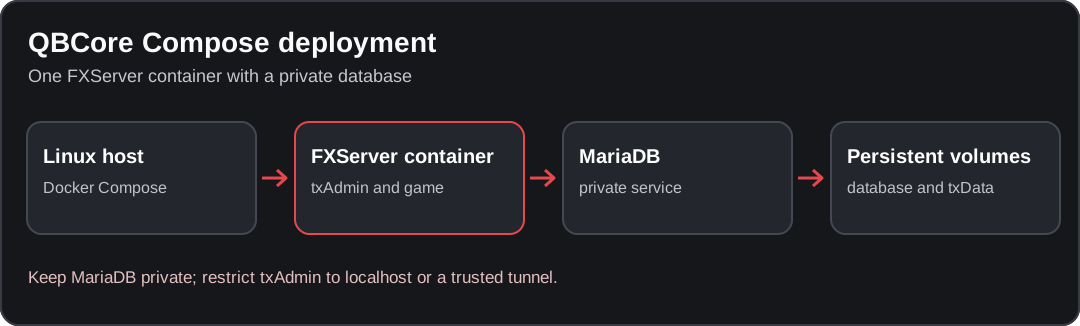
Conceptual diagram; verify the behavior against your installed resource version.
What you need
- A Linux x86-64 machine or VPS with Docker Engine and the
docker composeplugin. Docker Desktop may work for local experiments; Apple Silicon needs amd64 emulation, which is not validated here. An x86-64 Linux host is the recommended target. - A Cfx.re account and a server registration/license key from the Cfx Portal.
- The download URL for a recommended Linux Legacy FXServer artifact from the official server download page.
- A terminal with Bash or a compatible Unix shell and
opensslto create passwords. - Host access to allow 30120/TCP and 30120/UDP for players. Do not expose the MariaDB port or txAdmin publicly.
Check Docker first:
docker --version
docker compose version
Why this setup? The fivem service serves the game on port 30120. The db service
provides MariaDB on the private Compose network. The txdata and dbdata named
volumes preserve the server files and database across container recreation. The
txAdmin web interface (40120) is bound to the host's loopback interface.
1. Create a project directory
mkdir -p qbcore-docker/secrets qbcore-docker/backups
cd qbcore-docker

cat > .gitignore <<'EOF'
.env
secrets/
backups/
EOF
cp .gitignore .dockerignore
Do not commit .env, secret files, database dumps, txAdmin configuration or
server.cfg containing credentials.
Your working directory will contain these files:
qbcore-docker/
├── Dockerfile
├── compose.yaml
├── .env
├── .gitignore
├── .dockerignore
├── secrets/
│   ├── db_password
│   └── db_root_password
└── backups/
2. Select the current FXServer artifact
Open Cfx.re Server Download and select
FiveM (GTA V Legacy) → Linux → Recommended. Copy the direct archive download
URL, not the URL of the listing page. The Legacy Linux archive is normally named
fx.tar.xz. Its build number and hash change, so this article intentionally does
not hardcode one.
Create .env and replace the placeholder with that full URL:
# .env — replace this entire placeholder with the direct recommended download URL
FXSERVER_ARTIFACT_URL=PASTE_FULL_LINUX_FX_TAR_XZ_URL_HERE
A normal direct URL has the form
https://runtime.fivem.net/artifacts/fivem/build_proot_linux/master/BUILD-HASH/fx.tar.xz.
Use the actual value from Cfx.re, not the literal BUILD-HASH example.
Legacy vs Enhanced
Do not point this Dockerfile at the Enhanced Linux download without first checking
its archive format and startup layout. Cfx.re documents a different artifact name
for GTA V Enhanced. These commands explicitly target the Legacy fx.tar.xz layout.
3. Create the FXServer Dockerfile
Save the following as Dockerfile. The image downloads the selected official
artifact, extracts run.sh and alpine/, and runs FXServer as a non-root user.
The txAdmin data directory stays outside the image.
FROM debian:bookworm-slim

ARG FXSERVER_ARTIFACT_URL

RUN apt-get update && apt-get install -y --no-install-recommends \
    bash ca-certificates curl gzip libatomic1 libstdc++6 tar xz-utils \
    && rm -rf /var/lib/apt/lists/*

RUN test -n "$FXSERVER_ARTIFACT_URL" \
    && mkdir -p /opt/fxserver \
    && curl -fSL --retry 3 "$FXSERVER_ARTIFACT_URL" -o /tmp/fx.tar.xz \
    && tar -xJf /tmp/fx.tar.xz -C /opt/fxserver \
    && test -f /opt/fxserver/run.sh \
    && test -f /opt/fxserver/alpine/opt/cfx-server/FXServer \
    && rm /tmp/fx.tar.xz

RUN groupadd --gid 10001 fivem \
    && useradd --uid 10001 --gid fivem --home-dir /srv/fivem \
       --shell /usr/sbin/nologin fivem \
    && mkdir -p /srv/fivem/txData \
    && chown -R fivem:fivem /srv/fivem

WORKDIR /srv/fivem
USER fivem

EXPOSE 30120/tcp 30120/udp 40120/tcp

# No +exec server.cfg: txAdmin must run FXServer in monitor mode.
CMD ["bash", "/opt/fxserver/run.sh", "+set", "txAdminInterface", "0.0.0.0", "+set", "txAdminPort", "40120", "+set", "txDataPath", "/srv/fivem/txData"]
The 0.0.0.0 inside the container is necessary for Docker's port forwarding.
The Compose file below restricts host access to 127.0.0.1:40120.
Do not switch to +exec server.cfg for initial setup: txAdmin must launch in
monitor mode.
4. Generate MariaDB passwords
Run these commands in the qbcore-docker directory. They write two random passwords
to local files with restricted permissions; neither password is baked into an image.
umask 077
openssl rand -hex 32 > secrets/db_password
openssl rand -hex 32 > secrets/db_root_password
chmod 600 secrets/db_password secrets/db_root_password
The application user is qbcore and the database is qbcore. The separate root
password is only for database administration. Compose passes both through
Docker secrets.
5. Create compose.yaml
Save this as compose.yaml:
services:
  db:
    image: mariadb:11.4
    restart: unless-stopped
    environment:
      MARIADB_DATABASE: qbcore
      MARIADB_USER: qbcore
      MARIADB_PASSWORD_FILE: /run/secrets/db_password
      MARIADB_ROOT_PASSWORD_FILE: /run/secrets/db_root_password
    secrets:
      - db_password
      - db_root_password
    volumes:
      - dbdata:/var/lib/mysql
    healthcheck:
      test: ["CMD", "healthcheck.sh", "--connect", "--innodb_initialized"]
      interval: 10s
      timeout: 5s
      retries: 12
      start_period: 30s
    logging:
      driver: json-file
      options:
        max-size: "10m"
        max-file: "3"

  fivem:
    platform: linux/amd64
    build:
      context: .
      args:
        FXSERVER_ARTIFACT_URL: "${FXSERVER_ARTIFACT_URL:?Set the direct Linux artifact URL in .env}"
    depends_on:
      db:
        condition: service_healthy
    init: true
    restart: unless-stopped
    stop_grace_period: 60s
    ports:
      - "30120:30120/tcp"
      - "30120:30120/udp"
      - "127.0.0.1:40120:40120/tcp"
    volumes:
      - txdata:/srv/fivem/txData
    logging:
      driver: json-file
      options:
        max-size: "10m"
        max-file: "3"

secrets:
  db_password:
    file: ./secrets/db_password
  db_root_password:
    file: ./secrets/db_root_password

volumes:
  dbdata:
  txdata:
Do not add 3306:3306: the database is reachable from the fivem container
as db:3306 over the default Compose network. Publishing MariaDB to the
internet is unnecessary. The first database initialization creates the
qbcore database and a user scoped to it.
6. Build and start the containers
Check that you replaced PASTE_FULL_LINUX_FX_TAR_XZ_URL_HERE. Then validate the
Compose configuration and start the stack:
docker compose config --quiet
docker compose up -d --build
docker compose ps
docker compose logs --tail=100 fivem
The initial build downloads an FXServer archive; the first database boot
initializes MariaDB. In docker compose ps, db should become healthy and
fivem should be running. Inspect the fivem log for the txAdmin PIN and
onboarding URL.
The panel starting does not mean that QBCore is installed: that happens next.
If the containers stop, use docker compose logs fivem db before changing
the recipe or resources.
7. Open txAdmin without exposing it
On the Docker host, browse to http://127.0.0.1:40120. If Docker runs on a remote VPS, open an SSH tunnel from your own computer:
ssh -L 40120:127.0.0.1:40120 YOUR_SSH_USER@YOUR_VPS_IPKeep the SSH session open, then visit http://127.0.0.1:40120 in your local
browser. Enter the PIN printed by the container, link your Cfx.re account, and
configure the txAdmin administrator login. Do not publish port 40120
through a public reverse proxy just to complete setup.
8. Deploy QBCore through txAdmin
Create a new server profile
In txAdmin, choose a new profile and the Recipe Deployer. Select QBCore, or use the remote recipe URL below if it is not listed:
https://raw.githubusercontent.com/qbcore-fivem/txAdminRecipe/main/qbcore.yamlReview the recipe source
before continuing. It downloads qb-core, its declared qb-* and standalone
dependencies (including oxmysql), and runs the included qbcore.sql import.
Do not install a second qb-core or import a guessed SQL file.
Enter the license key and database details
Obtain the server registration key from the Cfx Portal and enter it in txAdmin when prompted. For database setup, select an existing database and enter:
| txAdmin field | Value |
|---|---|
| Host | db |
| Port | 3306 |
| Database | qbcore |
| Username | qbcore |
| Password | Contents of secrets/db_password |
Read the application password locally, without pasting it into a public terminal transcript:
cat secrets/db_passwordDo not enter localhost or 127.0.0.1 as the database host. Inside the
fivem container, those addresses point back to that container, not MariaDB.
Select the existing qbcore database rather than asking the deployer to create
another database with different permissions.
Run the recipe and review server.cfg
Wait for all download and SQL tasks to finish successfully. Review the
generated server.cfg from txAdmin's CFG editor. Its database connection must
reference db as the host; both game endpoints should listen on
0.0.0.0:30120 for Docker's published ports:
endpoint_add_tcp "0.0.0.0:30120"
endpoint_add_udp "0.0.0.0:30120"
Do not replace the recipe's resource start order. If a task fails, fix the first failed task before starting the game server.
Save, run, and test a character
Use Save & Run Server in txAdmin. Watch the txAdmin game-server console and the container logs until the QBCore resources finish loading. On a Windows FiveM client, open F8 and connect to your Docker host's reachable IP:
connect YOUR_SERVER_IP:30120For local Docker Desktop testing, use connect 127.0.0.1:30120. For a VPS,
use its public IP or hostname, not the container's internal address.
9. Confirm the installation worked
A complete smoke test is more than a successful docker compose up:
-
docker compose psshows a runningfivemservice and a healthydb. -
txAdmin reports no failed QBCore recipe tasks or missing
qb-core/oxmysqlresources;server.cfguses the correct database host. -
A FiveM client connects through
30120and reaches character selection/spawn. -
Create a test character, disconnect, reconnect, and confirm that the character still exists.
-
Restart
fivemand repeat the character test:docker compose restart fivem docker compose logs --tail=100 fivem
Character persistence checks that the recipe, resource startup and database work together. For more checks, use the QBCore first-boot checklist.
Day-to-day management
| Task | Command |
|---|---|
| Check containers | docker compose ps |
| Follow FXServer/txAdmin logs | docker compose logs -f fivem |
| Follow database logs | docker compose logs -f db |
| Restart FXServer container | docker compose restart fivem |
| Stop services (keep volumes) | docker compose down |
| Start again | docker compose up -d |
Never run docker compose down -v casually. The -v flag removes the
named data volumes, including player data and txAdmin profiles.
Back up both the database and txAdmin data
Stop the game service first so players are not modifying characters during the backup. With the database container still running:
mkdir -p backups
docker compose stop fivem

docker compose exec -T db sh -c \
  'export MYSQL_PWD="$(cat /run/secrets/db_password)"; mariadb-dump --single-transaction --quick -u qbcore qbcore' \
  > backups/qbcore.sql

docker compose run --rm -T --no-deps --entrypoint tar fivem \
  -C /srv/fivem/txData -czf - . > backups/txdata.tar.gz

docker compose start fivem

test -s backups/qbcore.sql
gzip -t backups/txdata.tar.gz
The SQL dump and txAdmin archive contain sensitive player/server data. Store
them securely outside the project checkout, keep retention copies on
separate storage, and test restoration on staging before trusting the backup.
Stopping just fivem leaves MariaDB available for the dump.
Update the FiveM artifact safely
-
Back up the database and txAdmin volume and record the working
FXSERVER_ARTIFACT_URLfrom.env. -
Replace the URL in
.envwith the newly recommended official Legacy Linux artifact URL. -
Rebuild the image and restart only the FiveM service:
docker compose stop fivem docker compose build --pull --no-cache fivem docker compose up -d fivem docker compose logs --tail=100 fivem -
Repeat the connection and character-persistence smoke test. Roll back by restoring the previously recorded artifact URL and rebuilding if needed.
The rebuilt image does not overwrite txdata or dbdata. Updating QBCore
resources is a separate change: do not rerun the new-install txAdmin recipe
over an established database. Follow the resource update guide.
Troubleshooting
| Symptom | What to check |
|---|---|
| Build fails while downloading an artifact | .env contains a direct, current Linux Legacy fx.tar.xz URL, not the downloads page or a literal placeholder. Inspect the HTTP/tar error. |
fivem exits immediately | Read docker compose logs fivem. Check the artifact layout, Linux amd64 host support and permissions on the named volume. |
| txAdmin cannot be opened | Check docker compose ps, the fivem logs, port 40120 on the Docker host, and your SSH tunnel if remote. |
| Database connection refused or denied | Use host db, port 3306, database/user qbcore and the password in secrets/db_password. Wait for the healthy DB state. |
| Recipe reports missing tables or exports | Inspect the first failed recipe task, SQL import and oxmysql startup. Do not import random schemas or reorder all resources. |
| FiveM client cannot connect | Confirm 30120 is open for both TCP and UDP on the host and provider firewall, the FXServer endpoints are 0.0.0.0:30120, and your license key is valid. |
| Changes disappear after recreation | Check that the expected Compose project and its txdata/dbdata volumes are in use. Recreating containers is safe; deleting volumes is not. |
If the issue is QBCore-specific after the container starts, consult resource load order, txAdmin recipe troubleshooting, and connection issues.
Sources and limitations
This guide uses the official Cfx.re Linux server instructions, txAdmin startup/configuration documentation, QBCore txAdmin recipe, Docker Compose volume guidance, and MariaDB healthcheck documentation. The upstream recipe downloads some dependencies from moving branches; record the resource revisions you installed before making production changes.
For a non-containerized host, use the QBCore Linux installation guide. For your first custom resource, continue with FiveM development.
Found an issue in this guide?
Send the page URL, the affected example, and a source or reproduction to the site maintainer. For a server or resource problem, use the support guide.
